- Search Results
Android Oreo 8.0 ROM, LineageOS 15 for Zenfone Max has now arrived via an UNOFFICIAL build. If you want the OFFICIAL update or some more Android Oreo ROMs then stay tuned to the Lineage OS 15 ROMs page or the AOSP Android Oreo devices list page. This LineageOS 15 for Asus Zenfone Max (Z010D) is brought to you by developer ANAND RAMACHANDRAN.
DONATION TO DEVELOPER:
If you like this ROM then do contribute to ANAND RAMACHANDRAN using the below link(s) for his hard work and efforts to port this ROM:
Donate to AIM ROMs
Donate to ANANDDISCLAIMER:
THIS IS AN INITIAL BUILD WHICH MAY NOT BOOT AT ALL. HAVE A BACKUP BEFORE FLASHING THIS AND TRY AT YOUR OWN RISK. Installing a custom ROM on a Asus Zenfone Max (Z010D, ZC550KL) requires the bootloader to be unlocked on the Asus Zenfone Max (Z010D) phone, which may VOID your warranty and may delete all your data. Before proceeding further you may consider backup all data on the phone. You are the only person doing changes to your phone and I cannot be held responsible for the mistakes done by you..content_layout_width { width: 270px; }
@media(min-width: 800px) { .content_layout_width { width: 500px; } }
</styleContent structure:
Status of LineageOS 15 for Zenfone Max Oreo 8.0 Custom ROM:
WHAT’S WORKING:
– Not KnownKNOWN ISSUES:
– Not Known
REQUIRED LINKS AND FILES FOR ASUS ZENFONE MAX LINEAGEOS 15 OREO CUSTOM ROM:
- TWRP recovery link for Asus Zenfone Max (Z010D, ZC550KL) [by audahadi]
– Here is theTWRP update guide for the Asus Zenfone Max. This TWRP recovery guide requires an unlocked bootloader on the Asus Zenfone Max.
- ROM Download link of Lineage OS 15 for Asus Zenfone Max [FILE REMOVED]
- Lineage 15 GApps download link for Asus Zenfone Max (Z010D, ZC550KL) LineageOS 15 Oreo 8.0 ROM
- Google Assistant for LineageOS [OPTIONAL]
– Use the following guide: installing recovery flashable zip
Root binary is NOT inbuilt in Lineage OS 15, so you may need a separate SuperSu package or LineageOS su binary to install to gain ROOT access. Here is Lineage OS 15.1 Rooting guide
If there is no in-built ROOT or it does not work for some reason then you can try SuperSU rooting guide to enable ROOT access.
HOW TO INSTALL/DOWNLOAD/FLASH/UPDATE Lineage OS 15 FOR Asus Zenfone Max OREO CUSTOM ROM:
Follow this if you are flashing LineageOS 15 for Asus Zenfone Max (Z010D, ZC550KL) for the first time, or coming from another ROM:
Points to NOTE:
– Try to avoid restoring apps backup using Titanium Backup. It may break things up.
– Don’t restore system data using Titanium Backup! It will definitely break the current installation.
– It is also discouraged to Restoring Apps + Data using Titanium Backup.- Download and Copy the GApps and Asus Zenfone Max (Z010D, ZC550KL) LineageOS 15 ROM ZIP to your phone.
- Boot into Recovery. Make sure to have a Custom recovery like CWM or TWRP or any other custom recovery. If not then follow the Custom Recovery Installation Guide for Asus Zenfone Max (it’s a generic guide which will work for TWRP as well as CWM recovery or any other recovery)
- Wipe data factory reset, Cache partition, Dalvik Cache and Format the System partition.
– Here is a guide explaining how to wipe data using TWRP recovery.This will delete all your data on your phone. You may consider complete backup of your phone data or take a NANDROID backup of the current ROM
– How to backup all data on your Android Device
– how to take NANDROID backup using TWRP recovery - First flash the LineageOS 15 for Zenfone Max ROM ZIP from device. Then flash the GApps zip from your device memory.
– Here is a post explaining how to install Lineage OS - Then reboot into recovery (don’t skip this) and flash the Gapps for LineageOS 15 package.
– Here is a post explaining how to flash GApps using TWRP recovery. - Reboot and Enjoy the Oreo 8.0 LineageOS 15 ROM for Asus Zenfone Max.
Upgrading from earlier version of Lineage OS 15 for Asus Zenfone Max (Z010D):
- Copy the latest Asus Zenfone Max Lineage 15 ROM ZIP file to your phone.
- Boot into Recovery.
- Flash the latest CM ROM ZIP from your phone.
– Here is a post explaining how to install LineageOS - Then flash the Lineage 15 Oreo GApps package.
– Here is a post explaining how to flash GApps using TWRP recovery. - Reboot and Enjoy
Complete the initial setup and enjoy Android Oreo 8.0 with Lineage OS 15 for Asus Zenfone Max. After the installation of LineageOS 15 for Asus Zenfone Max you may want to enable ROOT access on your phone and here is how you can do that:
How to ROOT for LineageOS 15.1.Stay tuned or Subscribe to the Asus Zenfone Max (Z010D, ZC550KL) forum For other Android Oreo, Nougat ROMs, LineageOS 15 ROMs, other ROMs and all other device specific topics.Android 10 based crDroid 6.5 for Oneplus 7 download is now available. This build of crDroid 6.5 for Oneplus 7 is brought to you by Hikari no Tenshi.
Other Android 10 Downloads for Oneplus 7
Following are some of the other Android 10 custom ROMs for Oneplus 7:
– LineageOS 17.1 download
– Android 10 download
– Bliss ROM Android 10 download
– RR Android 10 downloadDONATION TO DEVELOPER(S)/PROJECT:
If you like this ROM then consider for a donation to dev-name:
– No donation found for Hikari no Tenshi
[su_note note_color=”#F9D9D9″ text_color=”#AA4343″ radius=”3″ class=”” id=””]crDroid 6.5 is a custom ROM for Oneplus 7 which may have many bugs. This firmware has to be installed using a custom recovery such as TWRP, which requires an unlock bootloader on the phone.
Make sure you BACKUP all the data and all the partitions of your phone before installing this Android 10 ROM.You are the only person making changes to your phone and I cannot be held responsible for anything wrong done by you.[/su_note]
About crDroid 6.5 based on Android 10:
The crDroid ROM typically known as crDroid Android is a custom ROM which uses the LineageOS as its base. LineageOS base brings its own benefits, such as clean and secure code with regular secutiy patch merges.
crDroid is like LineageOS on steroids. Yes, it provides many more features, customizations etc. unlike the stock LineageOS which is kind of a clean installation without much of customization.
This is an open source project just like other custom ROMs which has 4 members namely: Neobuddy89, Firebird11, Gwiolf2u, Soubhik-Khan in the core team and many device maintainers.
The crDroid 6.5 is the latest version which based on the recently released Android 10.
Status of this Oneplus 7 crDroid 6.5 Android 10:
WHAT’S WORKING:
– UnknownKNOWN ISSUES:
– UnknownWhere to Download crDroid 6.5 for Oneplus 7?
- crDroid 6.5 Download for Oneplus 7
- TWRP for Oneplus 7
- How to install TWRP recovery
- Bootloader unlock guide – required to install TWRP recovery
- Android 10 GApps
How to Install Android 10 crDroid 6.5 on Oneplus 7?
[su_note note_color=”#D8F1C6″ text_color=”#769958″ radius=”3″ class=”” id=””]
Following are the two sub-sections of this Oneplus 7 Android 10 update guide:- First time installation of crDroid 6.5 ROM
- Upgrading from an older crDroid 6.5 build
[/su_note]
Installing crDroid 6.5 for the first time:
[su_note note_color=”#D8F1C6″ text_color=”#769958″ radius=”3″ class=”” id=””]This upgrade process requires few guides to be followed and few files to be downloaded. Everything referred in the below guide is provided in the above downloads section.[/su_note]
- Download and keep the Oneplus 7 crDroid 6.5 zip file,the Android 10 Gapps zip file and keep it in your PC or copy it to the phone.
- Boot into the TWRP Recovery (with SAR support) to install crDroid 6.5 on Oneplus 7.
[su_note note_color=”#D7E3F4″ text_color=”#728095″ radius=”3″ class=”” id=””]- Make sure to have a Custom recovery like a TWRP recovery or any other custom recovery.
– If not then unlock the bootloader and then download the TWRP recovery from Downloads link and follow the how to install TWRP recovery guide (it’s a generic guide which will work for TWRP as well as any other recovery)[/su_note] - Wipe system, data, and cache partition.
[su_note note_color=”#D7E3F4″ text_color=”#728095″ radius=”3″ class=”” id=””]- Here is a guide explaining how to wipe using TWRP recovery.[/su_note]
[su_note note_color=”#FBF4DD” text_color=”#A38C68″ radius=”3″ class=”” id=””]This will delete all your data on your phone. You may consider complete backup of your phone data or take a NANDROID backup of the current ROM
– Backup data on Android
– NANDROID backup on TWRP recovery[/su_note] - ADB sideload the crDroid 6.5 zip file
(or)
If ADB sideload is not working on recovery, just flash the zip using TWRP or any other recovery. - Then ADB Sideload the Android 10 Gapps zip file.
[su_note note_color=”#D7E3F4″ text_color=”#728095″ radius=”3″ class=”” id=””]- Here is a post explaining how to do ADB sideload using TWRP.[/su_note] - Once done, reboot and Enjoy Android 10 with Pixel Experience, on your Oneplus 7.
Upgrade crDroid 6.5 on Oneplus 7:
- Download and keep the latest crDroid 6.5 zip file built for Oneplus 7 on your PC
- Boot into TWRP recovery
- Wipe the system partition from the custom recovery menu.
- ADB sideload the crDroid 6.5 zip file
(or)
If ADB sideload is not working on recovery, just flash the zip using TWRP or any other recovery. - Reboot and see if you have the GApps and ROOT access or NOT (if you installed previously).
[su_note note_color=”#D8F1C6″ text_color=”#769958″ radius=”3″ class=”” id=””]- Gapps is built in such a way that it will sustain across ROM updates.[/su_note] - If you don’t have GApps after upgrading the Android 10 on the phone, then flash or ADB sideload the GApps again.
[su_note note_color=”#D7E3F4″ text_color=”#728095″ radius=”3″ class=”” id=””]- Here is a post explaining how to flash GApps or how to ADB sideload using TWRP recovery.[/su_note] - If you want application level rooting on crDroid 6.5 ROM, then flash the Magisk Installer zip file.
- Once everything is done, reboot and Enjoy the crDroid 6.5 update on Oneplus 7.
How to Root Oneplus 7 on crDroid 6.5?
After installing crDroid 6.5 on Oneplus 7 you may want to enable ROOT access on your phone and here is how you can do that:
– crDroid Rooting guide (this is for LineageOS 17.1 but should work fine on crDroid 6.5 Android 10)
[su_note note_color=”#D7E3F4″ text_color=”#728095″ radius=”3″ class=”” id=””]If there is no ROOT access for some reason even after installing the Magisk, then you can try installing SuperSU Zip to enable ROOT access.[/su_note]How to Get GCam for crDroid 6.5?
GCam 7.0 and later versions are compatible with crDroid 6.5 or any Android 10 ROM in general.
You can always look into the big list of GCam APK download page to get a compatible GCam for your phone.Stay tuned or Subscribe to the Oneplus 7 (guacamoleb) forum For other Android Pie, Android Oreo ROMs, Nougat ROMs, or other ROMs and all other device specific topics.Android 10 based Bliss ROM 12.x for One
Plus 3 is now available to download. This Bliss ROM Android 10 build for OnePlus 3 is brought to you by team Bliss.
Other Downloads for OnePlus 3
Following are some of the other custom ROMs based on Android 10 for OnePlus 3:
– LineageOS 17.1 for all available devices
– Android 10 download for all available devicesDONATION TO DEVELOPER(S)/PROJECT:
If you like this ROM then do consider for a contribution to Bliss ROMs team:
– Donate to Team Bliss
[su_note note_color=”#F9D9D9″ text_color=”#AA4343″ radius=”3″ class=”” id=””]This is a custom ROM for OnePlus 3 which may have many bugs. This firmware has to be installed using a custom recovery such as TWRP, which requires an unlocked bootloader on the phone.
Make sure you BACKUP all the data and all the partitions of your phone before installing this Bliss ROM.You are the only person making changes to your phone and I cannot be held responsible for anything wrong done by you.[/su_note]
About Bliss ROM v12 based on Android 10:
Bliss ROM is an AOSP based Rom which provides Theming options, customization, better battery life, regular security merges etc. This is a non-profit project founded and run by jackeagle and many others in the team.
The Bliss ROM version v12.x is based on the recently released Android 10, which is the latest Android to date.
Status of this OnePlus 3 Bliss ROM Android 10:
WHAT’S WORKING:
– Almost everythingKNOWN ISSUES:
– Nothing reported yet&nbdp;
Where to Download Bliss ROM 12.x Android 10 for OnePlus 3?
- Bliss ROM Android 10 Download for OnePlus 3
- TWRP for OnePlus 3
- How to install TWRP recovery
- Bootloader unlock guide – required to install TWRP recovery
- Android 10 GApps
How to Install Bliss ROM 12 on OnePlus 3?
[su_note note_color=”#D8F1C6″ text_color=”#769958″ radius=”3″ class=”” id=””]
Following are the two sub-sections of this OnePlus 3 Android 10 update guide:- First time installation of Bliss ROM Android 10 on OnePlus 3
- Upgrading Bliss ROM Android 10 build on OnePlus 3 from a previous build of the same ROM
[/su_note]
Installing Bliss ROM Android 10 for the first time:
[su_note note_color=”#D8F1C6″ text_color=”#769958″ radius=”3″ class=”” id=””]This upgrade process requires few guides to be followed and few files to be downloaded. Everything referred in the below guide is provided in the above downloads section.[/su_note]
- Download and Copy the Bliss ROM 12 Android 10 zip file for OnePlus 3 and the Android 10 Gapps zip file to your phone.
- Boot into the TWRP Recovery (with SAR support) to install Bliss ROM Android 10 on OnePlus 3.
[su_note note_color=”#D7E3F4″ text_color=”#728095″ radius=”3″ class=”” id=””]- Make sure to have a Custom recovery like a TWRP recovery or any other custom recovery.
– If not then download the TWRP recovery from Downloads link and follow the how to install TWRP recovery guide (it’s a generic guide which will work for TWRP as well as any other recovery)[/su_note] - Wipe system, data, and cache partition.
[su_note note_color=”#D7E3F4″ text_color=”#728095″ radius=”3″ class=”” id=””]- Here is a guide explaining how to wipe using TWRP recovery.[/su_note]
[su_note note_color=”#FBF4DD” text_color=”#A38C68″ radius=”3″ class=”” id=””]This will delete all your data on your phone. You may consider complete backup of your phone data or take a NANDROID backup of the current ROM
– Backup data on Android
– NANDROID backup on TWRP recovery[/su_note] - Install the Bliss ROM zip file that you have copied into the phone.
- Then flash the Android 10 Gapps zip file.
[su_note note_color=”#D7E3F4″ text_color=”#728095″ radius=”3″ class=”” id=””]- Here is a post explaining how to install GApps using TWRP recovery.[/su_note] - Reboot and Enjoy Android 10 with Bliss ROM, on your OnePlus 3.
Upgrade Bliss ROM Android 10 on OnePlus 3:
- Copy the latest Bliss ROM Android 10 zip file for your device
- Boot into TWRP recovery
- Wipe the system partition from the custom recovery menu.
- Install the latest Bliss ROM zip file.
- Reboot and see you have the GApps and ROOT access or NOT (if you installed previously).
[su_note note_color=”#D8F1C6″ text_color=”#769958″ radius=”3″ class=”” id=””]- Gapps is built in such a way that it will sustain across ROM updates.[/su_note] - If you don’t have GApps after upgrading the Android 10 on the phone, then flash the GApps again.
[su_note note_color=”#D7E3F4″ text_color=”#728095″ radius=”3″ class=”” id=””]- Here is a post explaining how to flash GApps using TWRP recovery.[/su_note] - If you don’t have ROOT after upgrading the Bliss ROM Android 10 on your phone, then flash the Magisk Installer zip file.
- Once everything is done, reboot and Enjoy the Android 10 Bliss ROM on OnePlus 3.
How to Get GCam for Bliss ROM Android 10?
GCam 7.0 and later versions are compatible with Bliss ROM v12 or any Android 10 ROM in general.
You can always look into the big list of Google Camera APK download page to get a compatible GCam for your phone.Stay tuned or Subscribe to the OnePlus 3 (oneplus3) forum For other Android Pie, Android Oreo ROMs, Nougat ROMs, or other ROMs and all other device specific topics.Android 10 based Pixel Experience 10 for OnePlus 5T is now available to download. This Pixel Experience Android 10 build for OnePlus 5T is brought to you by maximeyxw.
Other Android 10 Downloads for OnePlus 5T
Following are some of the other Android 10 custom ROMs for OnePlus 5T:
– LineageOS 17.1 download
– Android 10 download
– Bliss ROM Android 10 download
– RR Android 10 downloadDONATION TO DEVELOPER(S)/PROJECT:
If you like this ROM then consider for a donation to maximeyxw and jhenrique09 (founder developer of Pixel Experience):
– Donate to maximeyxw
– Donate to jhenrique09
[su_note note_color=”#F9D9D9″ text_color=”#AA4343″ radius=”3″ class=”” id=””]This is a custom ROM for OnePlus 5T which may have many bugs. This firmware has to be installed using a custom recovery such as TWRP, which requires an unlock bootloader on the phone.
Make sure you BACKUP all the data and all the partitions of your phone before installing this Pixel Experience 10 ROM.You are the only person making changes to your phone and I cannot be held responsible for anything wrong done by you.[/su_note]
About Pixel Experience 10 based on Android 10:
Pixel Experience is based on AOSP that includes GApps and includes many features from the Google Pixel devices. Like other custom ROMs, the Pixel Experience focuses more on bringing Pixel features and the Pixel Experience Plus variant brings few extra features.
This is an open-source project founded and run by jhenrique09 (Henrique Silva), and a team of 40+ developers.
The Pixel Experience version 10 is based on the recently released Android 10.
Status of this OnePlus 5T Pixel Experience Android 10:
WHAT’S WORKING:
– Everything is workingKNOWN ISSUES:
– No issues are found in the stable versionWhere to Download Pixel Experience 10 for OnePlus 5T?
- Pixel Experience 10 Download for OnePlus 5T
- TWRP for OnePlus 5T
- How to install TWRP recovery
- Bootloader unlock guide – required to install TWRP recovery
How to Install Android 10 Pixel Experience 10 on OnePlus 5T?
[su_note note_color=”#D8F1C6″ text_color=”#769958″ radius=”3″ class=”” id=””]
Following are the two sub-sections of this OnePlus 5T Android 10 update guide:- First-time installation of Pixel Experience 10 ROM
- Upgrading from an older Pixel Experience 10 build
[/su_note]
Installing Pixel Experience 10 for the first time:
[su_note note_color=”#D8F1C6″ text_color=”#769958″ radius=”3″ class=”” id=””]This upgrade process requires few guides to be followed and few files to be downloaded. Everything referred to in the below guide is provided in the above downloads section.[/su_note]
- Download and keep the OnePlus 5T Pixel Experience 10 zip file and keep it in your PC or copy it to the phone.
- Boot into the TWRP Recovery (with SAR support) to install Pixel Experience 10 on OnePlus 5T.
[su_note note_color=”#D7E3F4″ text_color=”#728095″ radius=”3″ class=”” id=””]- Make sure to have a Custom recovery like a TWRP recovery or any other custom recovery.
– If not then unlock the bootloader and then download the TWRP recovery from Downloads link and follow the how to install TWRP recovery guide (it’s a generic guide which will work for TWRP as well as any other recovery)[/su_note] - Wipe system, data, and cache partition.
[su_note note_color=”#D7E3F4″ text_color=”#728095″ radius=”3″ class=”” id=””]- Here is a guide explaining how to wipe using TWRP recovery.[/su_note]
[su_note note_color=”#FBF4DD” text_color=”#A38C68″ radius=”3″ class=”” id=””]This will delete all your data on your phone. You may consider complete backup of your phone data or take a NANDROID backup of the current ROM
– Backup data on Android
– NANDROID backup on TWRP recovery[/su_note] - ADB sideload the Pixel Experience 10 zip file
(or)
If ADB sideload is not working on recovery, just flash the zip using TWRP or any other recovery. - Once done, reboot and Enjoy Android 10 with Pixel Experience, on your OnePlus 5T.
Upgrade Pixel Experience 10 on OnePlus 5T:
- Download and keep the latest Pixel Experience 10 zip file built for OnePlus 5T on your PC
- Boot into TWRP recovery
- Wipe the system partition from the custom recovery menu.
- ADB sideload the Pixel Experience 10 zip file
(or)
If ADB sideload is not working on recovery, just flash the zip using TWRP or any other recovery. - Reboot and see if you ROOT access or NOT (if you installed previously)
- If you don’t have ROOT after upgrading the Pixel Experience 10 on your phone, then flash the Magisk Installer zip file.
- Once everything is done, reboot and Enjoy the Pixel Experience 10 update on OnePlus 5T.
How to Get GCam for Pixel Experience 10?
GCam 7.0 and later versions are compatible with Pixel Experience 10 or any Android 10 ROM in general.
You can always look into the big list of Google Camera APK download page to get a compatible GCam for your phone.Stay tuned or Subscribe to the OnePlus 5T (dumpling) forum For other Android Pie, Android Oreo ROMs, Nougat ROMs, or other ROMs and all other device specific topics.This post explains the Difference Between CyanogenMod Release Types: EXPERIMENTAL, NIGHTLY, SNAPSHOT and STABLE releases. CyanogenMod is one of the first and most used Android Custom ROMs. In fact there many custom ROMs which are built on top of CyanogenMod. So, it is necessary to know the different types of CyanogenMod release types to get a healthier CyanogenMod build on your device.

CyanogenMod has usually following kinds of build releases (CyanogenMod 9 – 10.2):
- EXPERIMENTAL
- NIGHTLY
- RELEASE CANDIDATE
- SNAPSHOT
- STABLE
CyanogenMod has usually following kinds of build releases (CyanogenMod 11 – 13):
- Development Channel (NIGHTLY)
- Release Channel (SNAPSHOT)
CyanogenMod EXPERIMENTAL build types:
EXPERIMENTAL builds are just the testing version for a particular device on a particular CyanogenMod branch, requested by device maintainers to evaluate specific changes on the CyanogenMod server(s). Basically EXPERIMENTAL releases are tested before they are released to public and are the first releases that CM allows to be used for official bug reports on their BUG tracking system: https://jira.cyanogenmod.org
Usually these EXPERIMENTAL CyanogenMod releases should be more STABLE than the NIGHTLY versions of CyanogenMod ROM. But since CyanogenMod 11 the EXPERIMENTAL CyanogenMod build tag is gone officially. There are only two tags: Development channel (a.k.a. Nightlies) and Release channel (a.k.a. Snapshots), which are explained later.CyanogenMod NIGHTLY build types:
NIGHTLY builds are automated by software and are built daily. Basically there is no human interaction in this. I mean to say NO developers is touching on these builds on a daily basis.
Usually developers are pushing their code changes to CyanogenMod servers via jira and Gerrit reviews and the codechange goes to the development channel. The automated NIGHTLY build will ensure if the code pushed-in to the CM server for a particular device builds successfully or not.CyanogenMod SNAPSHOT build types:
SNAPSHOT (the Release Channel) builds are usually build once a month and basic tests are carried out on these builds to see if everything is working before it is released to the public. The SNAPSHOT CyanogenMod releases are built from a different tag than the NIGHTLY branch. The release channel is built from a separate stable branch, cut from the main branch at a point deemed feature-complete and reliable. A small subset of code reviewers have the ability to merge commits into the stable branch after the cut has been made; i.e. everything that goes to the stable branch receives extra scrutiny.
CyanogenMod STABLE build types:
STABLE build will come when CyanogenMod developers (for a particular device, lets say OnePlus 3, rain) are done pushing all the desired changes and tested for a particular Android release like Android Lollipop. Usually the STABLE releases come very late.
For more info CyanogenMod release versioning scheme you can see here.
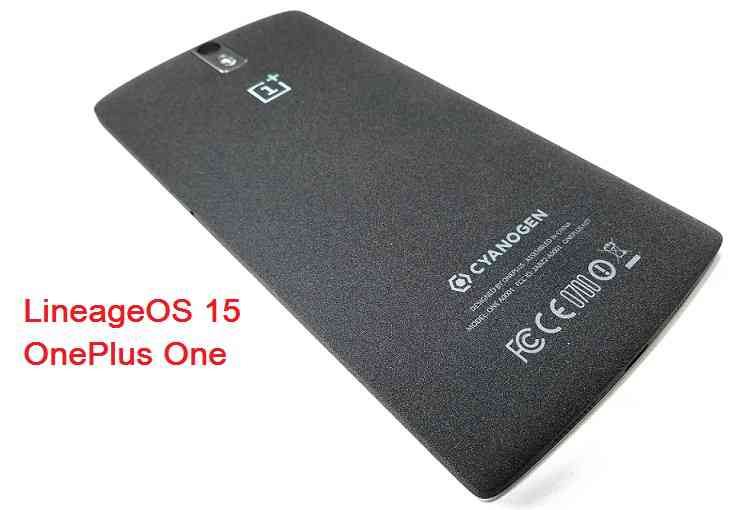
Android Oreo 8.0 ROM, LineageOS 15 for OnePlus One has now arrived via an UNOFFICIAL build. If you want the OFFICIAL LineageOS 15 for OnePlus One (OPO, bacon) or some more Android Oreo ROMs for OnePlus One then stay tuned to the Lineage OS 15 Android Oreo ROMs page or the AOSP Android Oreo devices list page. This Lineage 15 for OnePlus One is brought to you by developer jhalayashraj.
DONATION TO DEVELOPER(S):
– If you like this ROM then to support developer, consider a donation to jhalayashraj:
Donate to jhalayashrajDISCLAIMER:
THIS IS AN INITIAL ALPHA BUILD AND HAS MANY MORE BUGS. HAVE A BACKUP BEFORE FLASHING THIS AND TRY AT YOUR OWN RISK. Installing a custom ROM on a OnePlus One (bacon, OPO) requires an unlocked bootloader on OnePlus One (bacon, OPO), which may VOID your warranty and may delete all your data. Before proceeding further you may consider backup all data on the phone. You are the only person doing changes to your phone and I cannot be held responsible for the mistakes done by you.Content structure:
Status of Lineage OS 15 for OnePlus One Oreo ROM:
WHAT’S WORKING:
– WiFi
– Bluetooth
– RIL – Phone – Data
– Camera and Recording
– Hotspot
– GPS
– Sensors
– Audio
– Music
– NFC
– EverythingKNOWN ISSUES:
– NoneChangelog for this ROM is maintained by dev, which can be found here.

REQUIRED LINKS AND FILES FOR LineageOS 15 for OnePlus One OREO CUSTOM ROM:
- TWRP recovery download for OnePlus One (bacon, OPO)
– Here is theTWRP update guide for the OnePlus One. This TWRP recovery guide requires an unlocked bootloader on the OnePlus One.
- ROM Download link of Lineage OS 15 for OnePlus One
- Android Oreo GApps Download Link for LineageOS 15 for OnePlus One Oreo 8.0 ROM (Download the Slim Micro GApps for ARM32)
Root binary is NOT inbuilt in Lineage OS 15, so you may need a separate SuperSu package or LineageOS su binary to install to gain ROOT access. Here is Lineage OS Rooting guide
If there is no in-built ROOT or it does not work for some reason then you can try SuperSU rooting guide to enable ROOT access.HOW TO INSTALL/DOWNLOAD/FLASH/UPDATE Lineage OS 15 FOR OnePlus One OREO CUSTOM ROM:
Follow this if you are flashing LineageOS 15 for OnePlus One for the first time, or coming from another ROM:
Points to NOTE:
– Try to avoid restoring apps backup using Titanium Backup. It may break things up.
– Don’t restore system data using Titanium Backup! It will definitely break the current installation.
– It is also discouraged to Restoring Apps + Data using Titanium Backup.- Boot into Recovery. Make sure to have a Custom recovery like CWM or TWRP or any other custom recovery. If not then follow the Custom Recovery Guide for OnePlus One (it’s a generic guide which will work for TWRP as well as CWM recovery or any other recovery)
- Wipe data factory reset, Cache partition, Dalvik Cache and Format the System partition.
– Here is a guide explaining how to wipe data using TWRP recovery.This will delete all your data on your phone. You may consider complete backup of your phone data or take a NANDROID backup of the current ROM
– How to backup all data on your Android Device
– how to take NANDROID backup using TWRP recovery - Download and Copy the Oreo GApps and LineageOS 15 for OnePlus One Oreo ROM ZIP to your phone.
- First flash the Lineage OS 15 for OnePlus One Oreo ROM ZIP from device. Then flash the GApps zip from your device memory.
– Here is a post explaining how to install Lineage OS - Then reboot into recovery (don’t skip this) and flash the Gapps for LineageOS 15 package.
– Here is a post explaining how to flash GApps using TWRP recovery. - Reboot and Enjoy the Oreo 8.0 LineageOS 15 ROM for OnePlus One.
Upgrading from earlier version of Lineage OS 15 for OnePlus One (bacon, OPO):
- Copy the latest OnePlus One Lineage 15 ROM ZIP file to your phone.
- Boot into Recovery.
- Flash the latest Android Oreo LineageOS 15 ROM ZIP from your phone.
– Here is a post explaining how to install LineageOS - Then flash the Lineage 15 Oreo GApps package.
– Here is a post explaining how to flash GApps using TWRP recovery. - Reboot and Enjoy
Complete the initial setup and enjoy Android Oreo 8.0 with Lineage OS 15 for OnePlus One. After the installation of LineageOS 15 for OnePlus One you may want to enable ROOT access on your phone and here is how you can do that:
How to Enable ROOT on LineageOS 15.Stay tuned or Subscribe to the OnePlus One (bacon, OPO) forum For other Android Oreo, Nougat ROMs, LineageOS 15 ROMs, other ROMs and all other device specific topics.If you found any BUG or if you have any issues on this ROM then you can head to the development thread at XDA.
Oxygen OS 2.2.1 has been arrived for the OnePlus 2 (Plutonium) which was initially launched with Oxygen OS 2.0. Also, the Oxygen OS 2.2.1 update is needed if you want to flash Oxygen OS 2.2.1 on OnePlus 2

Who should install this Oxygen OS 2.2.1:
– Basically this update should come to you as an OTA (Over The Air) update. If you had not updated it yet, or somehow OnePlus has missed to send this update to your phone (Are you so unlucky???) then you should flash the update manually.
– If you have updated to some other ROMs like the CyanogenMod 12.1 on your OnePlus 2 or any other ROM and you want to come to stock Oxygen OS.
– If you want to update your OnePlus 2 to Oxygen OS 2.2.1 then you need this update.Where is the download link:
– 2.2.1 OTA download link
– MIRROR linkDISCLAIMER:
Before proceeding further you may consider backup your all data. Understand that YOU are the only person making changes to your phone. Neither we nor the developer can be held responsible for the disaster that may happen to your device after following this guide.Installing Oxygen OS 2.2.1 on OnePlus 2 (plutonium):
Below are the following scenarios how you can upgrade to OOS 2.2.1. Select the procedure whichever fits more appropriate for you.
- Guide for stock users. Locked Bootloader, Stock Recovery, No Root.
- For users with TWRP recovery
Upgrade instructions of OnePlus 2 Oxygen OS 2.2.1 for STOCK USERS:
If you are NOT willing to wipe your data, then follow the instructions:
- Copy the Oxygen OS 2.2.1 Zip file in the Internal Storage.
- Power Off Your Phone and boot into recovery by pressing power + volume down button while rebooting.
- Select English or any other language as per your preference.
- Select Install from Local.
- Select the Zip.
- Click on Install.
If you want to have a clean flash, meaning you are ready to wipe all of your precious data (User data and all apps) then you can Wipe Data and Cache before upgrading or installing the Oxygen OS 2.2.1 zip. This step will erase all the data on your phone and hence you should take a backup if you feel your data is precious to you.
Upgrade instructions of OnePlus 2 Oxygen OS 2.2.1 for TWRP users with other ROMs than Oxygen OS Marshmallow:
If you already have a TWRP recovery installed on your phone then chances are more that you have a custom ROM installed (I am just guessing this) on your OnePlus 2. So, I will recommend you to go for a clean flash.
- Copy the Oxygen OS 2.2.1 Zip file to the Internal Storage of your phone.
- Power Off Your Phone and boot into recovery by pressing power + volume down button while rebooting.
- Wipe -> Advcanced Wipe -> Select Dalvik, System, Data, Cache -> Swipe to wipe everything.
- Go to TWRP Home. Select Install. Select Oxygen OS 2.2.1 Zip. Swipe to Install.
If you don’t want to clean flash then you can SKIP the STEP 3 and simply install the Oxygen OS 2.2.1. This is your choice, don’t blame if you face any weird problems or any crash after dirty flash. Anyways, have fun and enjoy the latest update.
OnePlus 2 AOKP Nougat 7.0 ROM is now available through UNOFFCIAL build. Earlier quake73 and many other developers had brought the OnePlus 2 CM14/CyanogenMod 14 Nougat 7.0 ROM. Here we have AOKP for OnePlus 2 Nougat 7.0 ROM brought to you by developer quake73. Since Google released Android Nougat Source code, we have update many Android NOUGAT AOSP ROMs and also many CyanogenMod 14/CM14 ROMs updated and many are yet to come.
DISCLAIMER:
THIS COULD BE AN INITIAL ALPHA ROM OR JUST A DEVELOPMENT ROM. IT MAY NOT BOOT AT ALL OR IF AT ALL IT BOOTS THEN IT MAY NOT BE USABLE AS A DAILY DRIVER. I JUST FOUND THE ROM AND POSTED HERE. TRY AT YOUR OWN RISK. ALSO MAKE SURE TO TAKE NANDROID BACKUP OF YOUR CURRENT ROM.Installing a custom ROM on a the OnePlus 2 may require the bootloader to be unlocked on Oneplus 2 and a Custom Recovery on OnePlus 2, which may VOID your warranty and may delete all your data. Before proceeding further you may consider backup all data on the phone. You are the only person doing changes to your phone and I cannot be held responsible for the mistakes done by you.
Status of OnePlus 2 AOKP Nougat 7.0 ROM build:
WHAT’S WORKING:
– Not knownKNOWN ISSUES:
– Not known
REQUIRED DOWNLOADS AND LINKS ONEPLUS 2 AOKP NOUGAT 7.0 ROM UPDATE GUIDE:
- TWRP download link for OnePlus 2.
– Unlocked bootloader on OnePlus 2 and TWRP recovery installed on OnePlus 2
- ROM download link to quake73’s OnePlus 2 AOKP Nougat 7.0 ROM
- AOKP Nougat GApps download link for OnePlus 2 AOKP ROM
– How to enable ROOT on OnePlus 2 AOKP Nougat 7.0 AOSP [OPTIONAL]HOW TO INSTALL/FLASH/UPDATE AOKP FOR ONEPLUS 2 NOUGAT 7.0 ROM:
Follow these steps if you are flashing Nougat 7.0 AOKP for OnePlus 2 for the first time, or coming from another ROM:
Points to NOTE on BACKUP:
– Try to avoid restoring apps backup using Titanium Backup. It may break things up.
– Don’t restore system data using Titanium Backup! It will definitely break the current installation.
– It is also discouraged to Restoring Apps + Data using Titanium Backup.- Download and Copy the Nougat GApps and OnePlus 2 AOKP Nougat 7.0 ROM zip to the phone memory.
- Boot into Recovery. Make sure to have a Custom recovery like CWM or TWRP or any other custom recovery.
- Wipe data factory reset, Cache partition, Dalvik Cache and Format the System partition.
– Here is a guide explaining how to wipe data using TWRP recovery.This will delete all your data on your phone. You may consider complete backup of your phone data or take a NANDROID backup of the current ROM.
– How to backup all data on your Android Device.
– how to take NANDROID backup using TWRP recovery. - First flash the ROM zip of OnePlus 2 AOKP from device.
– Here is a post explaining how to flash a custom ROM using TWRP recovery. - Then reboot into recovery (don’t skip this) and flash the AOKP Nougat Google Apps package.
– Here is a post explaining how to flash GApps using TWRP recovery. - Reboot and Enjoy the AOKP Nougat for OnePlus 2.
Upgrading from earlier version of OnePlus 2 AOKP Nougat 7.0 ROM:
- Copy the OnePlus 2 AOKP ROM ZIP file to your phone.
- Boot into Recovery.
- Flash the latest ROM zip of OnePlus 2 AOKP from your phone.
– Here is a post explaining how to flash a custom ROM using TWRP recovery. - Then flash the AOKP Nougat Google Apps package.
– Here is a post explaining how to flash GApps using TWRP recovery. - Reboot and Enjoy
Complete the initial setup and enjoy Android Nougat 7.0 with AOKP for OnePlus 2 (codename: plutonium). After this AOKP installation you may want to enable ROOT access on your phone and here is how you can do that:
Enable ROOT on OnePlus 2 AOKP Nougat 7.0 AOSPStay tuned or Subscribe to the OnePlus 2 (plutonium) forum For other Android Nougat ROMs, CyanogenMod 14 ROMs, other ROMs and all other device specific topics.Android Oreo 8.0 ROM, LineageOS 15 for Yu Yuphoria has now arrived via an UNOFFICIAL build. In addition to this LineageOS ROM here is the AOSP Oreo ROM for Yuphoria, you can try if you are interested in. If you want the OFFICIAL update or some more Android Oreo ROMs then stay tuned to the Lineage OS 15 ROMs page or the AOSP Android Oreo devices list page. This LineageOS 15 for Yu Yuphoria (lettuce) is brought to you by developer tansanrao and another build is by Prashant Maheshwari, yet another build by #ROHAN.
DONATION TO DEVELOPER:
– Donation link not found for tansanrao.
DISCLAIMER:
THIS IS AN INITIAL BUILD WHICH MAY NOT BOOT AT ALL. HAVE A BACKUP BEFORE FLASHING THIS AND TRY AT YOUR OWN RISK. Installing a custom ROM on a Yu Yuphoria (lettuce) requires the bootloader to be unlocked on the Yu Yuphoria (lettuce) phone, which may VOID your warranty and may delete all your data. Before proceeding further you may consider backup all data on the phone. You are the only person doing changes to your phone and I cannot be held responsible for the mistakes done by you.Content structure:
Status of Lineage OS 15 for Yu Yuphoria Oreo 8.0 Custom ROM:
WHAT’S WORKING:
– Not KnownKNOWN ISSUES:
– Not Known
REQUIRED LINKS AND FILES FOR LineageOS 15 for Yu Yuphoria OREO CUSTOM ROM:
- TWRP recovery link for Yu Yuphoria (lettuce)
– Here is theTWRP update guide for the Yu Yuphoria. This TWRP recovery guide requires an unlocked bootloader on the Yu Yuphoria.
- ROM Download link of Lineage OS 15 for Yu Yuphoria [by #ROHAN]
- ROM Download link of Lineage OS 15 for Yu Yuphoria [by tansanrao]
- ROM Download link of Lineage OS 15 for Yu Yuphoria [by Prashant Maheshwari]
- Lineage 15 GApps download link for LineageOS 15 for Yu Yuphoria Oreo 8.0 ROM
Root binary is NOT inbuilt in Lineage OS 15, so you may need a separate SuperSu package or LineageOS su binary to install to gain ROOT access. Here is Lineage OS Rooting guide
If there is no in-built ROOT or it does not work for some reason then you can try SuperSU rooting guide to enable ROOT access.HOW TO INSTALL/DOWNLOAD/FLASH/UPDATE Lineage OS 15 FOR Yu Yuphoria OREO CUSTOM ROM:
Follow this if you are flashing LineageOS 15 for Yu Yuphoria for the first time, or coming from another ROM:
Points to NOTE:
– Try to avoid restoring apps backup using Titanium Backup. It may break things up.
– Don’t restore system data using Titanium Backup! It will definitely break the current installation.
– It is also discouraged to Restoring Apps + Data using Titanium Backup.- Download and Copy the GApps and LineageOS 15 for Yu Yuphoria Oreo ROM ZIP to your phone.
- Boot into Recovery. Make sure to have a Custom recovery like CWM or TWRP or any other custom recovery. If not then follow the Custom Recovery Installation Guide for Yu Yuphoria (it’s a generic guide which will work for TWRP as well as CWM recovery or any other recovery)
- Wipe data factory reset, Cache partition, Dalvik Cache and Format the System partition.
– Here is a guide explaining how to wipe data using TWRP recovery.This will delete all your data on your phone. You may consider complete backup of your phone data or take a NANDROID backup of the current ROM
– How to backup all data on your Android Device
– how to take NANDROID backup using TWRP recovery - First flash the Lineage OS 15 for Yu Yuphoria Oreo ROM ZIP from device. Then flash the GApps zip from your device memory.
– Here is a post explaining how to install Lineage OS - Then reboot into recovery (don’t skip this) and flash the Gapps for LineageOS 15 package.
– Here is a post explaining how to flash GApps using TWRP recovery. - Reboot and Enjoy the Oreo 8.0 LineageOS 15 ROM for Yu Yuphoria.
Upgrading from earlier version of Lineage OS 15 for Yu Yuphoria (lettuce):
- Copy the latest Yu Yuphoria Lineage 15 ROM ZIP file to your phone.
- Boot into Recovery.
- Flash the latest CM ROM ZIP from your phone.
– Here is a post explaining how to install LineageOS - Then flash the Lineage 15 Oreo GApps package.
– Here is a post explaining how to flash GApps using TWRP recovery. - Reboot and Enjoy
Complete the initial setup and enjoy Android Oreo 8.0 with Lineage OS 15 for Yu Yuphoria. After the installation of LineageOS 15 for Yu Yuphoria you may want to enable ROOT access on your phone and here is how you can do that:
How to Enable ROOT on LineageOS 15.Stay tuned or Subscribe to the Yu Yuphoria (lettuce) forum For other Android Oreo, Nougat ROMs, LineageOS 15 ROMs, other ROMs and all other device specific topics.Android 10 based Pixel Experience 10 for OnePlus 5 is now available to download. This Pixel Experience Android 10 build for OnePlus 5 is brought to you by maximeyxw.
Other Android 10 Downloads for OnePlus 5
Following are some of the other Android 10 custom ROMs for OnePlus 5:
– LineageOS 17.1 download
– Android 10 download
– Bliss ROM Android 10 download
– RR Android 10 downloadDONATION TO DEVELOPER(S)/PROJECT:
If you like this ROM then consider for a donation to maximeyxw and jhenrique09 (founder developer of Pixel Experience):
–Donate to maximeyxw
– Donate to jhenrique09[su_note note_color=”#F9D9D9″ text_color=”#AA4343″ radius=”3″ class=”” id=””]This is a custom ROM for OnePlus 5 which may have many bugs. This firmware has to be installed using a custom recovery such as TWRP, which requires an unlock bootloader on the phone.
Make sure you BACKUP all the data and all the partitions of your phone before installing this Pixel Experience 10 ROM.You are the only person making changes to your phone and I cannot be held responsible for anything wrong done by you.[/su_note]
About Pixel Experience 10 based on Android 10:
Pixel Experience is based on AOSP that includes GApps and includes many features from the Google Pixel devices. Like other custom ROMs, the Pixel Experience focuses more on bringing Pixel features and the Pixel Experience Plus variant brings few extra features.
This is an open-source project founded and run by jhenrique09 (Henrique Silva), and a team of 40+ developers.
The Pixel Experience version 10 is based on the recently released Android 10.
Status of this OnePlus 5 Pixel Experience Android 10:
WHAT’S WORKING:
– Everything is workingKNOWN ISSUES:
– NothingWhere to Download Pixel Experience 10 for OnePlus 5?
- Pixel Experience 10 Download for OnePlus 5
- TWRP for OnePlus 5
- How to install TWRP recovery
- Bootloader unlock guide – required to install TWRP recovery
How to Install Android 10 Pixel Experience 10 on OnePlus 5?
[su_note note_color=”#D8F1C6″ text_color=”#769958″ radius=”3″ class=”” id=””]
Following are the two sub-sections of this OnePlus 5 Android 10 update guide:- First-time installation of Pixel Experience 10 ROM
- Upgrading from an older Pixel Experience 10 build
[/su_note]
Installing Pixel Experience 10 for the first time:
[su_note note_color=”#D8F1C6″ text_color=”#769958″ radius=”3″ class=”” id=””]This upgrade process requires few guides to be followed and few files to be downloaded. Everything referred to in the below guide is provided in the above downloads section.[/su_note]
- Download and keep the OnePlus 5 Pixel Experience 10 zip file and keep it in your PC or copy it to the phone.
- Boot into the TWRP Recovery (with SAR support) to install Pixel Experience 10 on OnePlus 5.
[su_note note_color=”#D7E3F4″ text_color=”#728095″ radius=”3″ class=”” id=””]- Make sure to have a Custom recovery like a TWRP recovery or any other custom recovery.
– If not then unlock the bootloader and then download the TWRP recovery from Downloads link and follow the how to install TWRP recovery guide (it’s a generic guide which will work for TWRP as well as any other recovery)[/su_note] - Wipe system, data, and cache partition.
[su_note note_color=”#D7E3F4″ text_color=”#728095″ radius=”3″ class=”” id=””]- Here is a guide explaining how to wipe using TWRP recovery.[/su_note]
[su_note note_color=”#FBF4DD” text_color=”#A38C68″ radius=”3″ class=”” id=””]This will delete all your data on your phone. You may consider complete backup of your phone data or take a NANDROID backup of the current ROM
– Backup data on Android
– NANDROID backup on TWRP recovery[/su_note] - ADB sideload the Pixel Experience 10 zip file
(or)
If ADB sideload is not working on recovery, just flash the zip using TWRP or any other recovery. - Once done, reboot and Enjoy Android 10 with Pixel Experience, on your OnePlus 5.
Upgrade Pixel Experience 10 on OnePlus 5:
- Download and keep the latest Pixel Experience 10 zip file built for OnePlus 5 on your PC
- Boot into TWRP recovery
- Wipe the system partition from the custom recovery menu.
- ADB sideload the Pixel Experience 10 zip file
(or)
If ADB sideload is not working on recovery, just flash the zip using TWRP or any other recovery. - Reboot and see if you ROOT access or NOT (if you installed previously)
- If you don’t have ROOT after upgrading the Pixel Experience 10 on your phone, then flash the Magisk Installer zip file.
- Once everything is done, reboot and Enjoy the Pixel Experience 10 update on OnePlus 5.
How to Get GCam for Pixel Experience 10?
GCam 7.0 and later versions are compatible with Pixel Experience 10 or any Android 10 ROM in general.
You can always look into the big list of Google Camera APK download page to get a compatible GCam for your phone.Stay tuned or Subscribe to the OnePlus 5 (cheeseburger) forum For other Android Pie, Android Oreo ROMs, Nougat ROMs, or other ROMs and all other device specific topics.- TWRP recovery link for Asus Zenfone Max (Z010D, ZC550KL) [by audahadi]